
Get started
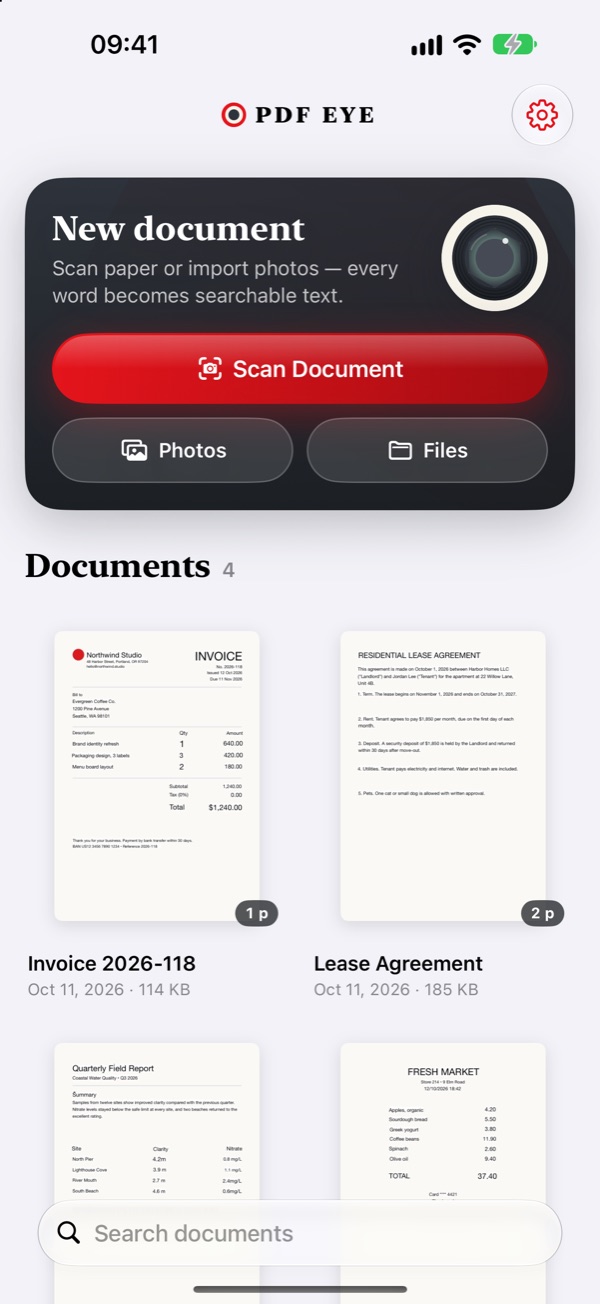
Open PDF Eye and tap Scan Document. Hold your iPhone or iPad over the paper: the page edges are found automatically and each page is cropped and flattened. Scan as many pages as you like, then tap Save. You can also tap Photos or Files to create a document from images you already have (on Mac, these are the ways to create documents).
Give the document a name and choose a page type, then tap Create PDF. PDF Eye recognizes the text and opens your new document.
Page types
- Text + Image — the scanned page with real, selectable text placed where the printed text was. Searchable and editable, and it looks like the original.
- Text Only — the recognized text on a clean page. The smallest files, fully editable.
- Image Only — the scan as a picture with invisible text underneath, so you can still search and copy.
Turn on Remember my choice to skip the question next time. You can change the default in Settings and the type of any page with Setup.
The document screen
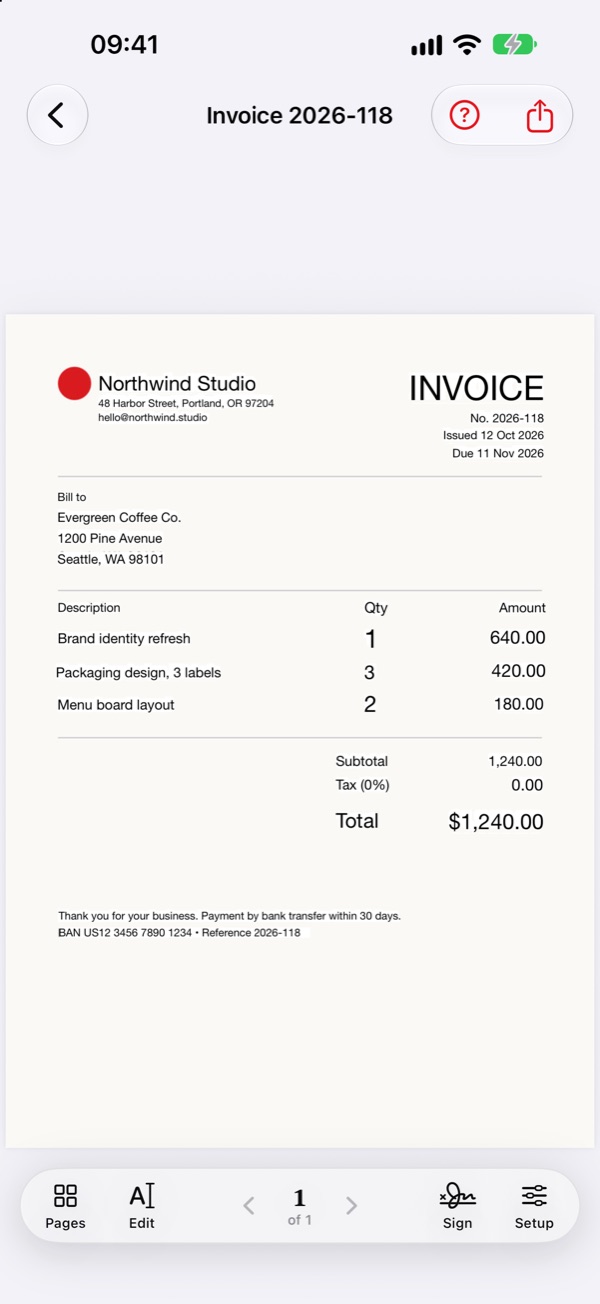
Swipe or use the arrows to move between pages. The toolbar at the bottom has everything else:
- Pages — reorder pages by dragging, add pages from the camera, Photos or Files, and tap a page to crop, rotate, share or delete it.
- Edit — open the current page in the page editor.
- Sign — sign or highlight the current page.
- Setup — change the page type, paper size (automatic, A4, A3, A2 or US Letter) and orientation of the current page.
The share button at the top shares the PDF, shows the text of the whole document or the current page so you can copy it, and can regenerate the PDF.
Edit recognized text
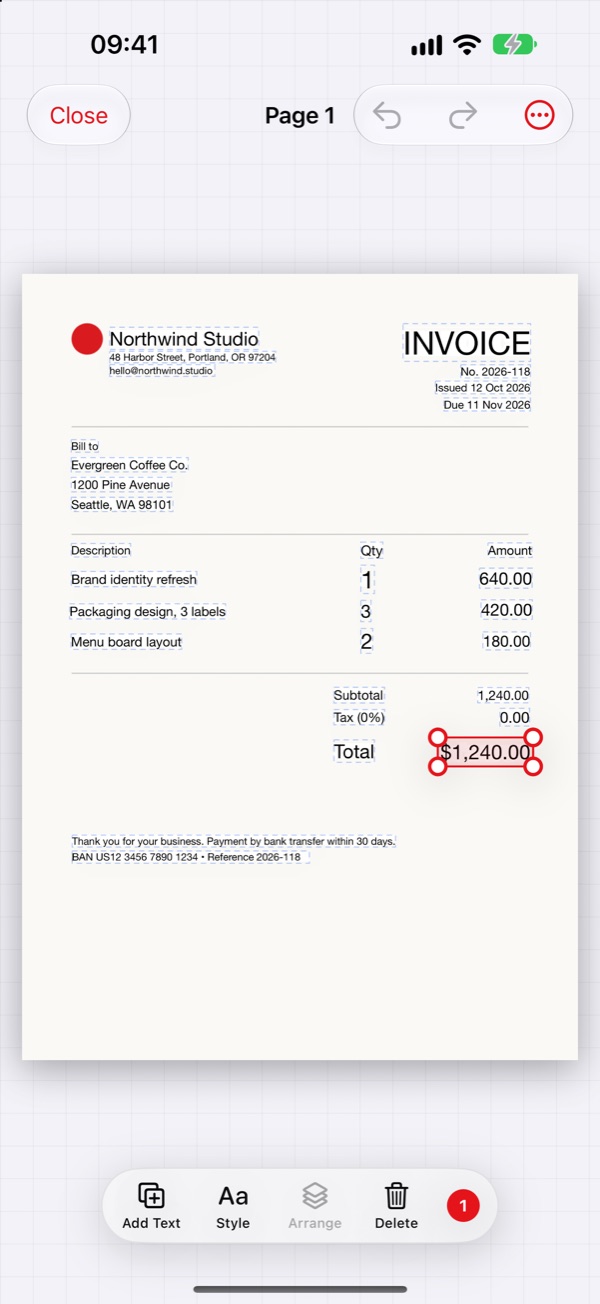
In the page editor every recognized text is a box on the page.
- Select — tap a text. Drag across empty paper to select several.
- Move and resize — drag a selected text; drag a corner handle to resize it.
- Style — double-tap a text or tap Style to change the words, font, size, color, alignment, line spacing, underline and strikethrough. For recognized text you can also choose what covers the original print: a solid color, or Smart, which rebuilds the paper texture.
- Arrange — with several texts selected, align them, distribute them evenly or merge them into one text.
- Add Text — adds a new text box in the middle of the page.
- Delete — for recognized text, choose whether the scan underneath shows through or the background stays clean.
- Zoom — pinch to zoom and drag with two fingers to move around.
The ⋯ menu can recognize the page’s text again and lets you draw on the page background, for example to cover a stain with a white pen. Undo and redo are at the top. Tap Save to keep your changes.
Sign and highlight
Tap Sign, then write with Apple Pencil or your finger. The tool palette offers pens, a highlighter and an eraser. Tap Done to keep your marks; they are saved with the page and included when you share the PDF. Signing and highlighting are part of PRO.
Text recognition languages
Open Settings → Languages. Put the language of your documents first and remove languages you never scan — this improves accuracy. Language correction fixes likely mistakes using a dictionary. Recognition always runs on your device.
PDF Eye PRO
The free version keeps up to 2 documents and adds a small watermark to shared PDFs. PRO unlocks unlimited documents, saving text edits, signing and highlighting, and watermark-free sharing. Choose a monthly or yearly subscription, or a one-time purchase, from the PRO button in the app. To restore a purchase on a new device, tap Restore Purchases in Settings.
Need help?
Visit Support to send us a message.